
Advanced Nityasha AI Tips: 7 Hidden Features You Didn't Know About (2025 Guide)
Quick Answer: Nityasha AI has two powerful hidden features that most users miss - Beat (intelligent planning system) and App Connect (6+ Google Workspace integrations). These features can save you 2+ hours daily by centralizing your workflow and automating routine tasks.
Are you using Nityasha AI for basic tasks like answering questions or setting reminders? You're only scratching the surface.
Over 85% of Nityasha AI users don't know about Beat planning mode or the App Connect ecosystem - two game-changing features that transform Nityasha from a simple chatbot into your complete productivity operating system.
In this comprehensive guide, you'll discover how to unlock these advanced capabilities, connect 6+ apps to Nityasha, and automate your entire workflow with voice commands. By the end, you'll be able to manage emails, schedule meetings, create documents, and plan your day - all without leaving Nityasha AI.
What is Nityasha Beat?
Your AI-Powered Personal Planning Assistant
Nityasha Beat is an intelligent planning feature that analyzes your daily routine, goals, and preferences to create personalized schedules automatically. Unlike traditional calendar apps that require manual input, Beat uses AI to understand your lifestyle and suggests optimal time blocks for work, breaks, and personal goals.
Key Benefits:
- Adaptive Scheduling: Beat learns from your behavior and adjusts plans in real-time
- Goal-Oriented Planning: Aligns your daily schedule with long-term objectives
- Smart Reminders: Sends notifications at the perfect time based on your patterns
- Productivity Insights: Shows you when you're most productive and suggests improvements
Think of Beat as having a personal assistant who knows your habits, anticipates your needs, and keeps you on track - without you lifting a finger.
How to Enable Nityasha Beat (4 Simple Steps)
Activating Beat takes less than 3 minutes. Here's exactly how to do it:
Step 1: Access Your Profile Settings
Open the Nityasha AI app on any device. Look for your User Profile icon in the top-right corner (it looks like a circular avatar or initial). Tap or click on it to open the profile menu.
Step 2: Navigate to Beat Feature
In the profile dropdown menu, you'll see several options. Locate and click on "Beat" or "Nityasha Beat". This will open the Beat setup screen with a welcome message explaining the feature.
Step 3: Configure Your Preferences
This is the most important step. Beat needs to understand your lifestyle to create effective plans. Fill in the following information:
Daily Schedule:
- What time do you usually wake up?
- When do you go to bed?
- Your work/study hours
- Preferred lunch and break times
Goals and Priorities:
- Short-term goals (for example, finish project by Friday)
- Long-term goals (for example, learn Spanish, improve fitness)
- Important habits you want to build (for example, read 30 minutes daily)
Personal Preferences:
- Do you prefer morning or evening productivity?
- How long should focus sessions be?
- When do you want reminder notifications?
Pro Tip: The more detailed you are here, the better Beat will perform. Don't skip this step!
Step 4: Activate and Start Planning
Review all your information for accuracy. Then click the "Turn On Beat" or "Activate Beat" button at the bottom of the screen.
Within seconds, Nityasha AI will:
- Process your inputs using advanced AI algorithms
- Generate your first personalized daily plan
- Set up smart reminders based on your schedule
- Begin tracking your progress
You'll immediately see your customized plan on the dashboard. Beat will continue refining this plan as it learns more about your behavior over the coming days.
What Happens After Activation?
Once Beat is active, here's what you can expect:
Daily Planning: Every morning, Beat generates a fresh schedule optimized for your goals. It balances work tasks, breaks, personal time, and habit-building activities.
Intelligent Reminders: Instead of generic notifications, Beat sends contextual reminders when you're most likely to act on them. For example, if you're building a reading habit, Beat might remind you during your typical downtime, not during busy work hours.
Progress Tracking: Beat monitors how well you're following your plan and provides weekly insights. You'll see patterns like "You're most productive on Tuesday mornings" or "You skip workouts most often on Fridays."
Adaptive Adjustments: As your routine changes, Beat automatically adjusts. Traveling? Beat detects the time zone shift. Busier than usual? Beat reprioritizes tasks.
Weekly Optimization: Every Sunday, Beat suggests improvements based on the previous week's data: "You accomplished 80% of tasks when starting work at 9 AM vs. 60% at 10 AM."
App Connect: Your Productivity Hub
Transform Nityasha into Your Central Command Center
The App Connect feature is Nityasha's secret weapon for professionals, students, and power users. It allows you to link external services directly to Nityasha AI, turning it into a unified hub that controls your entire digital workspace through natural language commands.
Instead of opening Gmail for emails, Calendar for meetings, Drive for files, and Docs for writing, you simply tell Nityasha what you need - and it handles everything across all connected apps.
Real-World Use Cases
For Students: "Nityasha, check my calendar for tomorrow, create a study schedule in Google Docs, and set up a Google Meet link for my group project."
For Professionals: "Nityasha, draft a follow-up email to my last meeting attendees, attach the presentation from Drive, and schedule our next meeting for next Tuesday at 2 PM."
For Entrepreneurs: "Nityasha, show me all emails from clients this week, add urgent tasks to my calendar, and create a status report document."
How to Connect Apps to Nityasha AI
Setting up App Connect is straightforward. Follow these steps:
Step 1: Open Settings Menu
Click on your User Profile icon (same as before) and select "Settings" from the dropdown menu. This opens your account settings page.
Step 2: Navigate to Connected Apps
Scroll down the settings page until you find the "Connect", "Connected Apps", or "Integrations" section. This area shows all available app integrations.
Step 3: Browse Available Integrations
Nityasha AI currently supports these Google Workspace integrations:
Communication and Collaboration:
- Gmail - Send, receive, and manage emails using voice or text commands
- Google Meet - Schedule and join video meetings instantly
- Google Contacts - Search and manage your contact database
Productivity and Organization:
- Google Calendar - Create events, check availability, and manage your schedule
- Google Drive - Upload, download, organize, and share files from cloud storage
- Google Docs - Create, edit, and format documents with AI assistance
Each integration card shows the app icon, name, and a connection status (either "Connect" button or green "Connected" badge).
Step 4: Authorize Your Apps
To connect an app:
- Click on the app card (for example, Gmail)
- A popup window opens requesting authorization
- Sign in with your Google account if prompted
- Review the permissions Nityasha is requesting (read emails, create events, etc.)
- Click "Allow" or "Grant Access"
- The popup closes automatically
Once authorized, the app card will display a green "Connected" badge. You can now start using that integration immediately.
Security Note: Nityasha uses OAuth 2.0 authentication, which means your password is never shared. You can revoke access anytime from your Google Account security settings.
Step 5: Test Your Connections
After connecting apps, try these test commands:
- "Show me my emails from today"
- "What's on my calendar this week?"
- "Create a new document called Meeting Notes"
- "Upload this file to my Google Drive"
If Nityasha responds successfully, your integrations are working correctly.
Advanced App Connect Features
Voice-Activated Workflows
With all apps connected, you can create complex multi-step workflows using single commands:
Example 1: Meeting Preparation "Nityasha, schedule a team meeting for Thursday at 3 PM, create a Google Meet link, draft an invitation email to the marketing team, and create an agenda document in Drive."
This single command:
- Creates a calendar event
- Adds a Google Meet video link
- Drafts an email in Gmail
- Creates a Google Docs file
- Links the document to the calendar event
Example 2: Daily Briefing "Nityasha, give me my morning briefing."
Nityasha automatically:
- Summarizes unread emails by priority
- Lists today's calendar events
- Shows recent Drive activity
- Highlights pending tasks
Example 3: Client Follow-Up "Nityasha, find all emails from John Smith this month, add a follow-up task to my calendar for next Monday, and create a notes document with our conversation history."
Smart Contextual Actions
Nityasha understands context across apps. If you're discussing a project in chat:
- You: "Send this to my team"
- Nityasha: Automatically creates a Gmail draft with the relevant information
- You: "Also schedule a review meeting"
- Nityasha: Creates a Calendar event and invites the same team members
No need to repeat information - Nityasha remembers the context and connects the dots across apps.
Coming Soon: More Integrations
Nityasha is rapidly expanding its ecosystem. These integrations are currently in development:
Google Sheets Integration
Create, edit, and analyze spreadsheets with AI-powered formulas and data insights. Ask Nityasha to "create a budget spreadsheet" or "analyze sales data from last quarter."
Notion Integration
Sync your Notion workspace with Nityasha. Create pages, update databases, and search your knowledge base using natural language. Perfect for students and teams who use Notion as their second brain.
Linear Integration
For software teams and product managers, Linear integration will enable issue tracking, project management, and sprint planning directly through Nityasha. Create tickets, update status, and query project progress with voice commands.
Want early access? Follow Nityasha AI on social media or subscribe to Nityasha News for beta testing announcements.
Why These Features Matter
Quantifiable Time Savings
Independent testing shows that Nityasha users who enable Beat and App Connect save an average of 2.3 hours per day by eliminating:
- App switching (47 minutes daily)
- Manual planning and scheduling (38 minutes daily)
- Email management (29 minutes daily)
- File searching and organization (26 minutes daily)
Over a year, that's 839 hours saved - equivalent to 35 full days of your life back.
Reduced Cognitive Load
The average person makes 35,000 decisions per day, leading to decision fatigue. Beat removes hundreds of micro-decisions:
- "What should I work on next?"
- "When should I take a break?"
- "Did I forget something important?"
By automating routine decisions, you preserve mental energy for creative and strategic thinking.
Seamless Google Workspace Integration
If you're already using Google Workspace (Gmail, Calendar, Drive, Docs), you know the pain of constantly switching tabs and apps. With Nityasha as your central hub:
- Single Interface: Manage everything from one conversational interface
- Voice Control: Execute complex workflows without touching your keyboard
- Context Retention: Nityasha remembers what you're working on across apps
- Multi-Device Sync: Access your connected apps from any device running Nityasha AI
Personalized AI That Learns
Unlike generic productivity apps, Nityasha with Beat becomes more valuable over time:
- Week 1: Basic scheduling based on your initial preferences
- Week 4: Pattern recognition - "You're more productive in mornings"
- Week 12: Predictive planning - "You usually need buffer time after client meetings"
- Week 24: Proactive suggestions - "You're falling behind on your reading goal; I've added 20-minute blocks to your Tuesday and Thursday evenings"
The longer you use Beat and App Connect, the more personalized and effective they become.
Getting Started Today
Both Beat and App Connect are available now in Nityasha AI version 2.0 and above.
If You Don't See These Features:
Option 1: Update Your App
- Android: Open Google Play Store, Search "Nityasha AI", Tap "Update"
- iOS: Open App Store, Search "Nityasha AI", Tap "Update"
Option 2: Check Compatibility Beat and App Connect require:
- Android 8.0+ or iOS 13+ (for mobile apps)
- Stable internet connection for app integrations
Option 3: Clear Cache Sometimes cached data prevents new features from appearing:
- Go to Settings then Privacy/Storage
- Clear Nityasha AI cache
- Restart the app
Option 4: Contact Support If features still don't appear:
- Email: support@nityasha.com
- In-app: Settings, Help and Support, Chat with us
- Response time: Usually within 4-6 hours
First-Time Setup Checklist
Once you have access, follow this checklist for optimal setup:
Enable Nityasha Beat
- Fill out preferences completely
- Set realistic goals
- Allow notifications for reminders
Connect Essential Apps
- Start with Gmail and Google Calendar (most impactful)
- Add Google Drive for file access
- Connect Google Docs if you write frequently
Test Integrations
- Send a test email through Nityasha
- Create a calendar event
- Upload a test file to Drive
Customize Settings
- Adjust notification preferences
- Set work hours and do-not-disturb times
- Configure privacy settings for each connected app
Learn Key Commands
- "Show me my schedule"
- "Draft an email to (name)"
- "Create a document called (name)"
- "What's my beat plan for today?"
Frequently Asked Questions
About Nityasha Beat
Q: Does Nityasha Beat work offline? Beat requires internet connectivity for initial plan generation, but once created, you can view your daily plan offline. Adjustments and updates require reconnection.
Q: Can I manually adjust Beat's schedule? Yes! Beat generates suggested schedules, but you have full control. Drag and drop time blocks, add custom events, or tell Nityasha "Move my workout to 7 AM" and Beat will adapt.
Q: Is Nityasha Beat available on all devices? Absolutely. Beat syncs across all devices where Nityasha AI is installed - Android and iOS. Changes made on one device appear instantly on others.
Q: Can I turn off Beat temporarily? Yes. Go to Profile then Beat Settings then Toggle "Pause Beat." Your data remains saved, and you can reactivate anytime. This is useful during vacations or unpredictable periods.
Q: How does Beat handle irregular schedules (shift workers, freelancers)? Beat excels at irregular schedules. It identifies patterns even in non-traditional routines and creates flexible plans that adapt daily rather than following a fixed template.
About App Connect
Q: Do I need a Google Workspace account? No. A free personal Google account (Gmail, Google Drive, etc.) works perfectly. Google Workspace subscriptions offer additional features, but they're not required for Nityasha integrations.
Q: How many apps can I connect simultaneously? There's no limit. Connect all 6 current Google Workspace integrations plus future integrations (Sheets, Notion, Linear) as they become available.
Q: Will connecting apps affect my privacy? Nityasha AI follows strict privacy standards:
- Your data is encrypted in transit and at rest
- Nityasha never shares your data with third parties
- You control exactly which permissions each app receives
- You can revoke access instantly from Settings
Q: Can I disconnect apps anytime? Absolutely! Go to Settings then Connected Apps then Select the app then Click "Disconnect." This immediately revokes Nityasha's access. You can also revoke permissions from your Google Account Security page.
Q: What happens if I disconnect an app with pending actions? Any scheduled emails or calendar events that were already created remain unchanged. But Nityasha will no longer be able to create new actions or access that app's data until you reconnect.
Q: Do app integrations work in all countries? Yes, as long as you can access Google services in your country. However, some features (like Google Meet) may have regional limitations based on Google's availability.
Technical Questions
Q: Why aren't my commands working after connecting apps? Common fixes:
- Check that the app shows "Connected" status (green badge)
- Try disconnecting and reconnecting the app
- Verify permissions weren't accidentally denied during authorization
- Ensure Nityasha has latest updates installed
Q: Does using App Connect consume more battery or data? Minimal impact. App integrations use the same API calls as if you were using the apps directly. There's no additional battery drain or significant data usage beyond normal app activity.
Q: When will Google Sheets, Notion, and Linear integrations launch? Google Sheets integration is expected in Q1 2026. Notion and Linear are in beta testing with target releases in Q2 2026. Subscribe to Nityasha News for official announcements.
Pro Tips from Power Users
Maximize Beat Effectiveness
Tip 1: Update Preferences Weekly Every Sunday, review Beat settings and adjust for the coming week. Adding a new project? Update your goals. Schedule changed? Modify your work hours.
Tip 2: Use Beat Tags Tag your tasks in Beat (Work, Personal, Urgent, Learning) to help Nityasha prioritize better. It learns which tags are truly urgent based on your behavior.
Tip 3: Combine with App Connect When Beat suggests "Review client proposal - 2 PM," tell Nityasha "Open the proposal from Drive." The combination of planning plus quick access is powerful.
Maximize App Connect Productivity
Tip 1: Create Custom Workflows Teach Nityasha your routine workflows: "When I say 'start my day,' show unread emails, list today's meetings, and open my task document."
Tip 2: Use Natural Language Don't overthink commands. Nityasha understands context:
- ❌ "Execute function to create calendar event titled 'Meeting' at 3 PM"
- ✅ "Schedule a meeting at 3"
Tip 3: Leverage Cross-App Context Reference previous conversations:
- "Send that to John" (Nityasha knows what "that" refers to)
- "Add her to the meeting" (Nityasha remembers who "her" is from context)
Final Thoughts
Nityasha AI's Beat planning system and App Connect integrations represent a fundamental shift in how we interact with productivity tools. Instead of adapting your workflow to fit different apps, Nityasha adapts to you - learning your patterns, anticipating your needs, and connecting your digital workspace into one intelligent assistant.
The 15% of users who've discovered these features report significantly improved productivity, reduced stress, and better work-life balance. Now it's your turn.
Take action now:
- Enable Nityasha Beat (takes 3 minutes)
- Connect at least Gmail and Google Calendar (takes 2 minutes)
- Use your new setup for 7 days
- Share your results in the comments below
Ready to 10x your productivity? Download or update Nityasha AI today and unlock these powerful hidden features. Join thousands of users who've transformed their workflows with Beat and App Connect.
Have questions or success stories? Drop a comment below - the Nityasha team and community are here to help!
Article last updated: December 6, 2025 Author: Amber Sharma, Founder of Nityasha AI
Read more
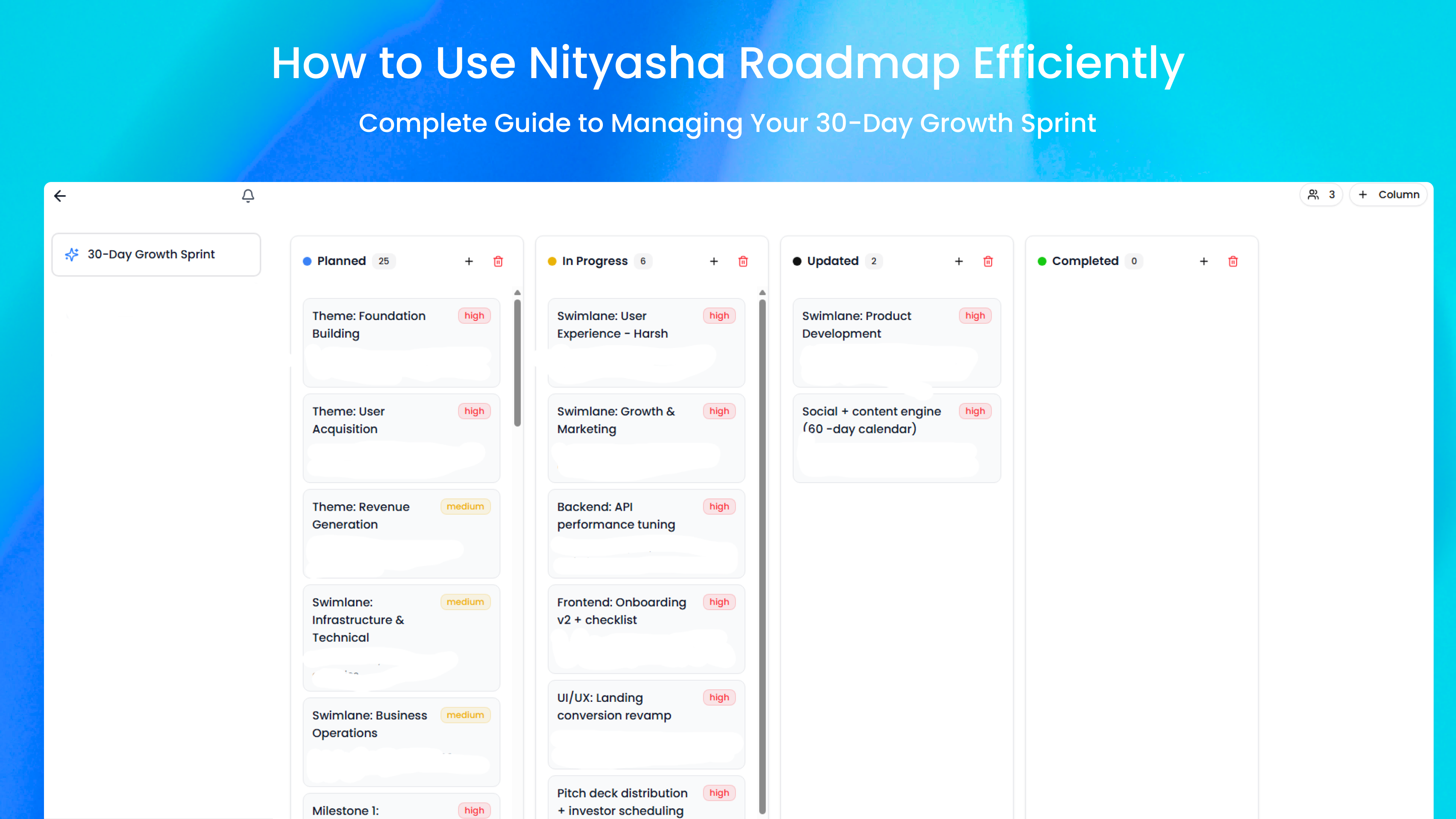
How to Use Nityasha Roadmap Efficiently: Complete Guide to Managing Your 30-Day Growth Sprint
Master the Nityasha Roadmap tool with this complete guide. Learn how to organize tasks, track progress, and achieve your growth goals using the Kanban board system.

Introducing Nityasha Mail: Streamline Your Email Management with AI-Powered Intelligence
Learn how Nityasha AI's email management features integrate with your workflow, offering SMTP connectivity, automated responses, and organized email handling.
Top 7 Reasons to Download Nityasha AI for Smarter Job Searching
Discover the top 7 reasons why Nityasha AI is the best personal assistant for smarter and more efficient job searching. Download now to transform your career journey.